> ## Documentation Index
> Fetch the complete documentation index at: https://docs.pathstack.io/llms.txt
> Use this file to discover all available pages before exploring further.
# Bridgestone Webfleet
To connect your Bridgestone Webfleet telematics data with PathStack, you will need the following access credentials:
* Username
* Password
* API Key
To obtain these credentials, please follow the steps below:
Visit Webfleet Login Bridgestone Webfleet service and log in to your account. Once logged in, navigate to the
**Users** section.
Within the 'Users' section, create a new user account with the email address set as '[support@nuonic.com.au](mailto:support@nuonic.com.au)'. Ensure
that the user account has the necessary permissions and access rights.
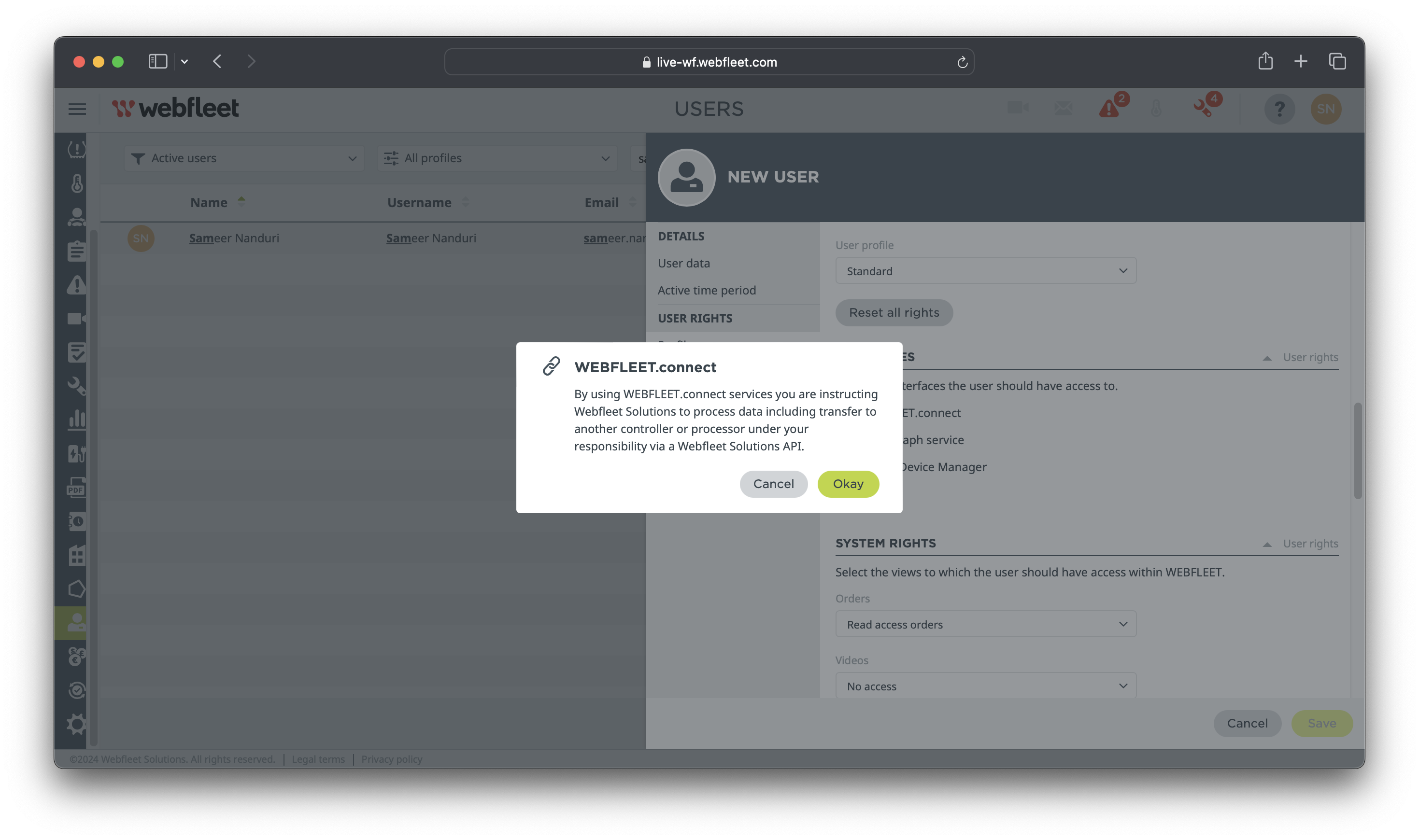
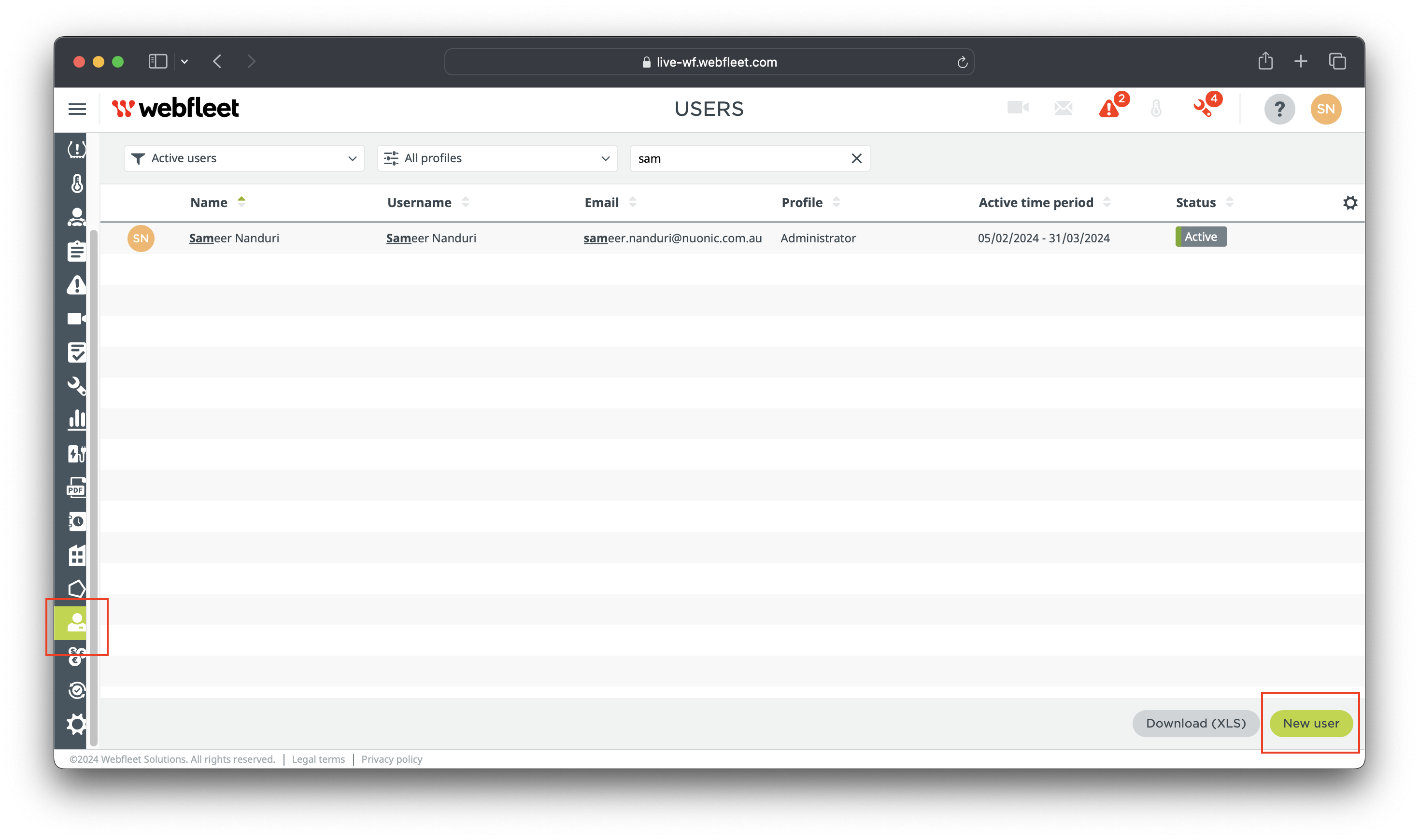 In the 'Interfaces' section of your Webfleet account settings, locate and select 'Webfleet Connect'. Confirming
these changes will generate an API Key associated with your account.
After configuring the 'Webfleet Connect' interface, your API Key will be provided. Ensure to note down or copy your
API Key, as it will be required to integrate your Bridgestone Webfleet telematics device with PathStack.
In the 'Interfaces' section of your Webfleet account settings, locate and select 'Webfleet Connect'. Confirming
these changes will generate an API Key associated with your account.
After configuring the 'Webfleet Connect' interface, your API Key will be provided. Ensure to note down or copy your
API Key, as it will be required to integrate your Bridgestone Webfleet telematics device with PathStack.
 See the link on how to retrieve your API Key: [Webfleet integration help
guide](https://www.webfleet.com/en_gb/webfleet/partners/integration/developer-resources/#apikey)
For further support in obtaining these credentials please contact the Webfleet team at (02) 7202 5060.
See the link on how to retrieve your API Key: [Webfleet integration help
guide](https://www.webfleet.com/en_gb/webfleet/partners/integration/developer-resources/#apikey)
For further support in obtaining these credentials please contact the Webfleet team at (02) 7202 5060.