> ## Documentation Index
> Fetch the complete documentation index at: https://docs.pathstack.io/llms.txt
> Use this file to discover all available pages before exploring further.
# Digital Matter
PathStack supports integration with Digital Matter devices over HTTP and TCP.
For HTTP, the connector must be configured to send JSON data to our server using the Telematics Guru platform.
Below are the steps for creating your HTTP connection:
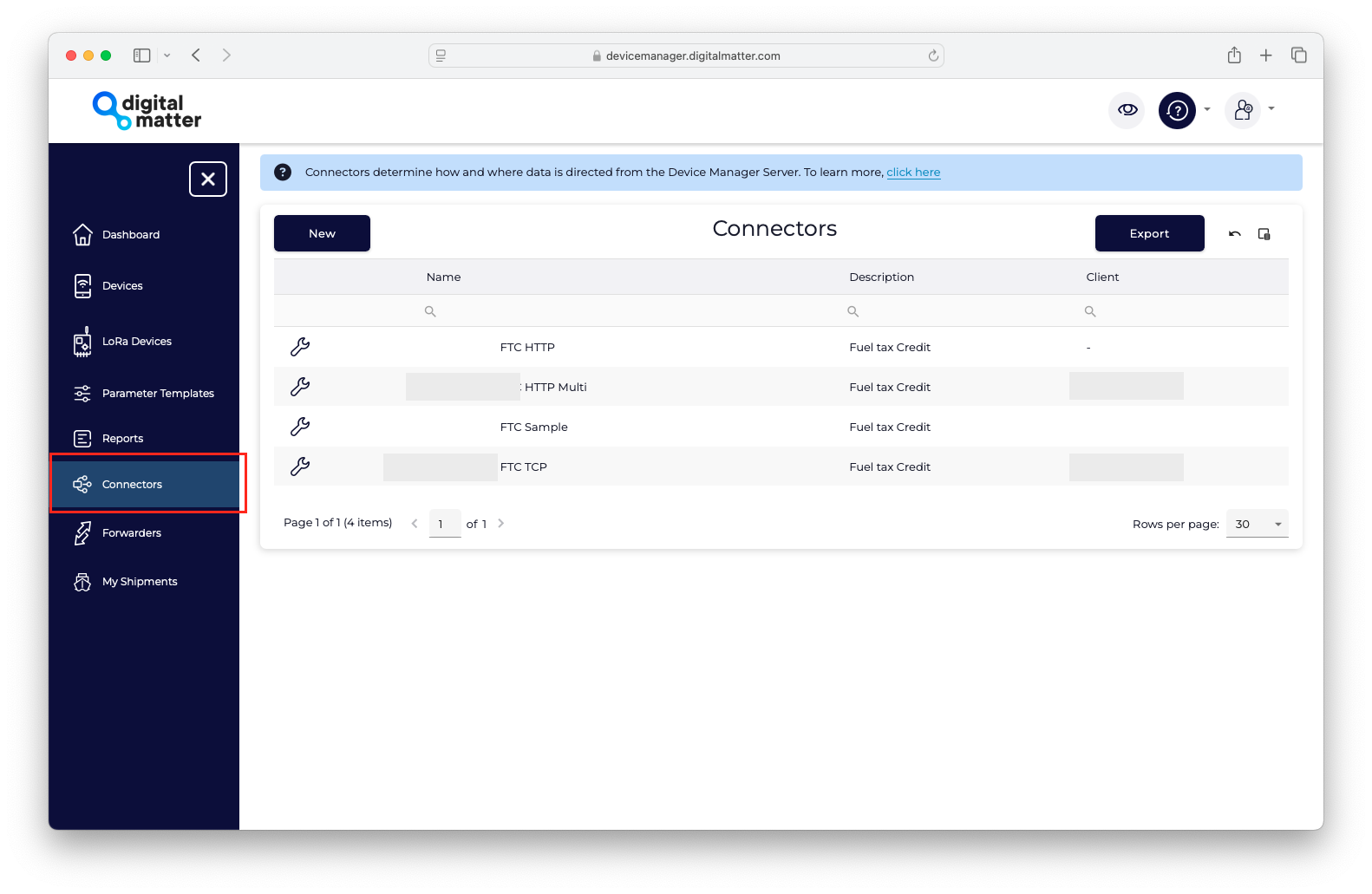
Navigate to the Connectors option in the side panel of the Digital Matter / Telematics Guru portal and click on `New` connection.
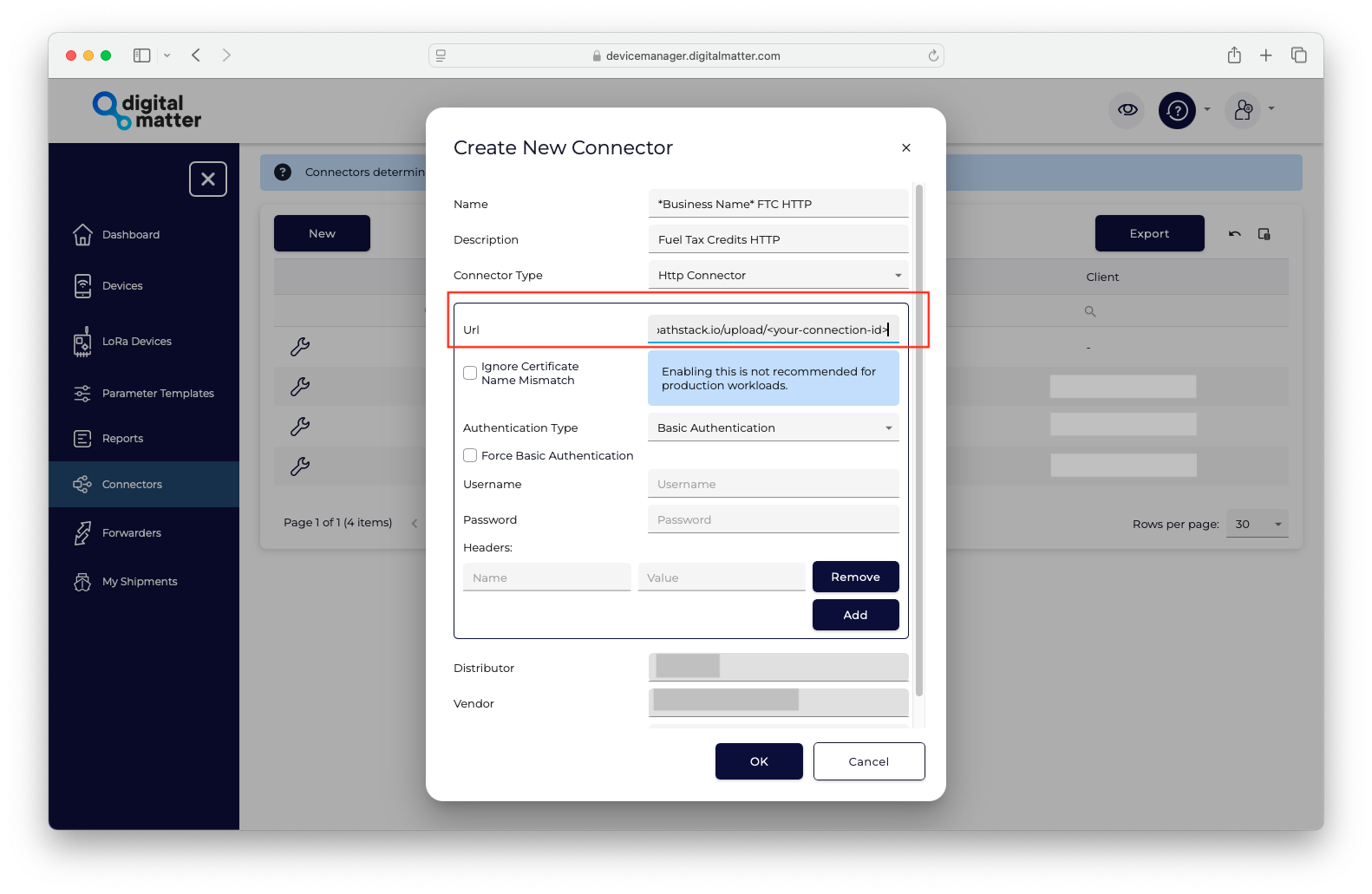
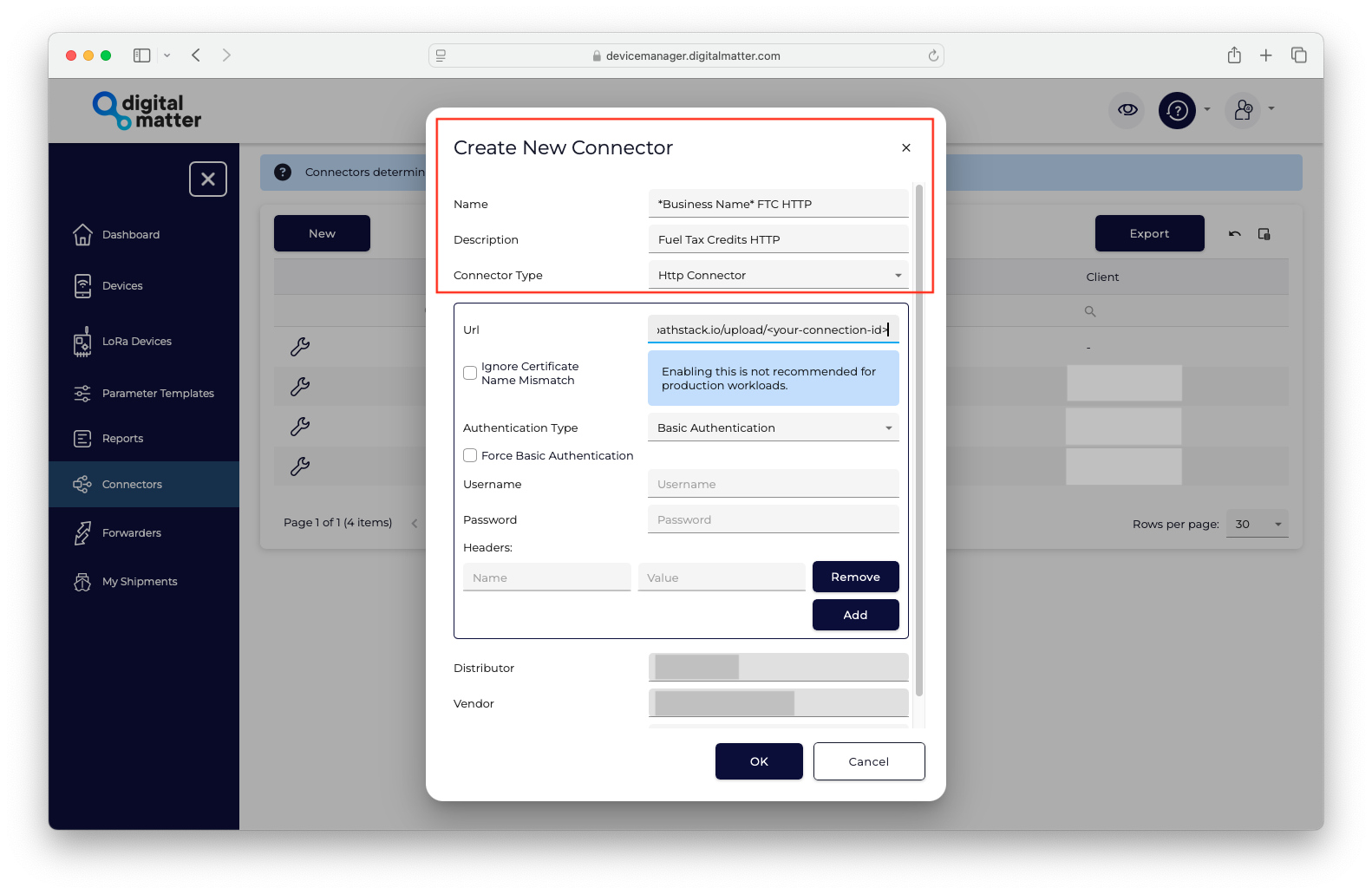 Input the following URL:
`https://dm.pathstack.io/upload/`
(The Nuonic/Prism support team will provide your ‘connection ID.’)
Input the following URL:
`https://dm.pathstack.io/upload/`
(The Nuonic/Prism support team will provide your ‘connection ID.’)
 Enter your client name in the field below Vendor.
Leave all other settings as default and click OK to save.
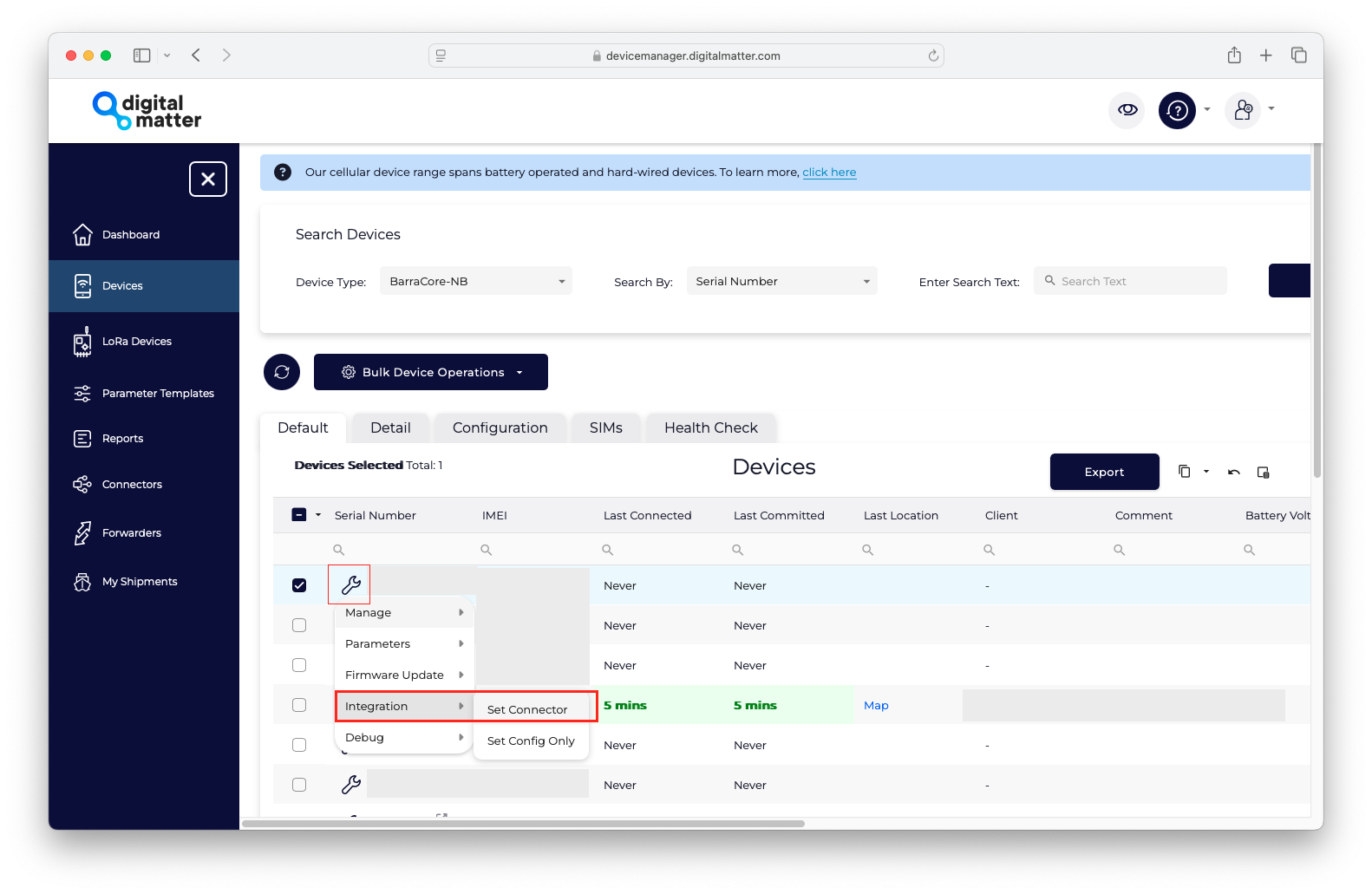
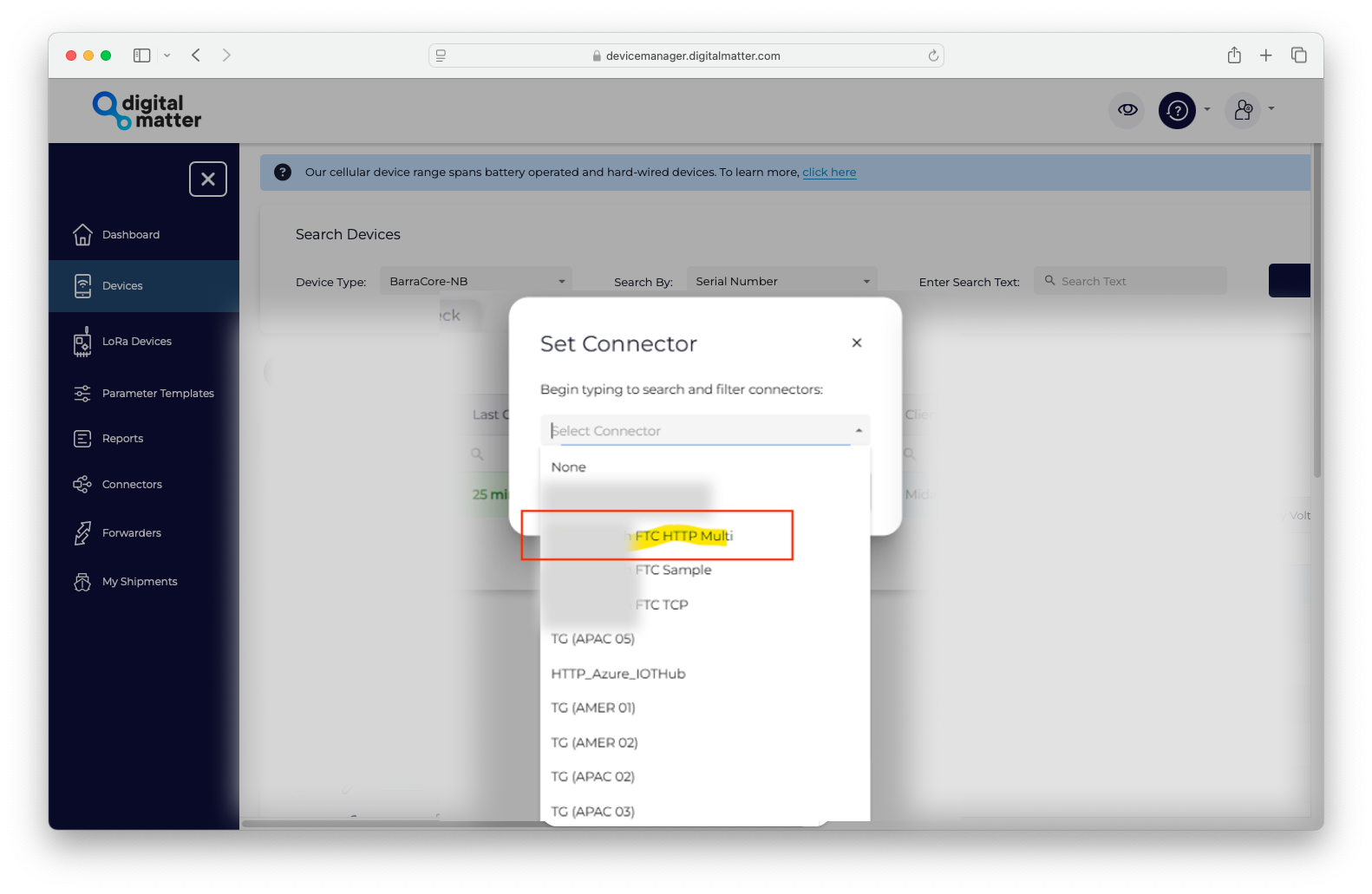
Select devices and configure your device with the HTTP connection (See screenshot below for reference).
Enter your client name in the field below Vendor.
Leave all other settings as default and click OK to save.
Select devices and configure your device with the HTTP connection (See screenshot below for reference).
 If you would like to set up a multi-connection with HTTP connection included as one of the connections, please see the steps below
Navigate to the Connectors option in the side panel of the Digital Matter / Telematics Guru portal and click on New connection.
If you would like to set up a multi-connection with HTTP connection included as one of the connections, please see the steps below
Navigate to the Connectors option in the side panel of the Digital Matter / Telematics Guru portal and click on New connection.
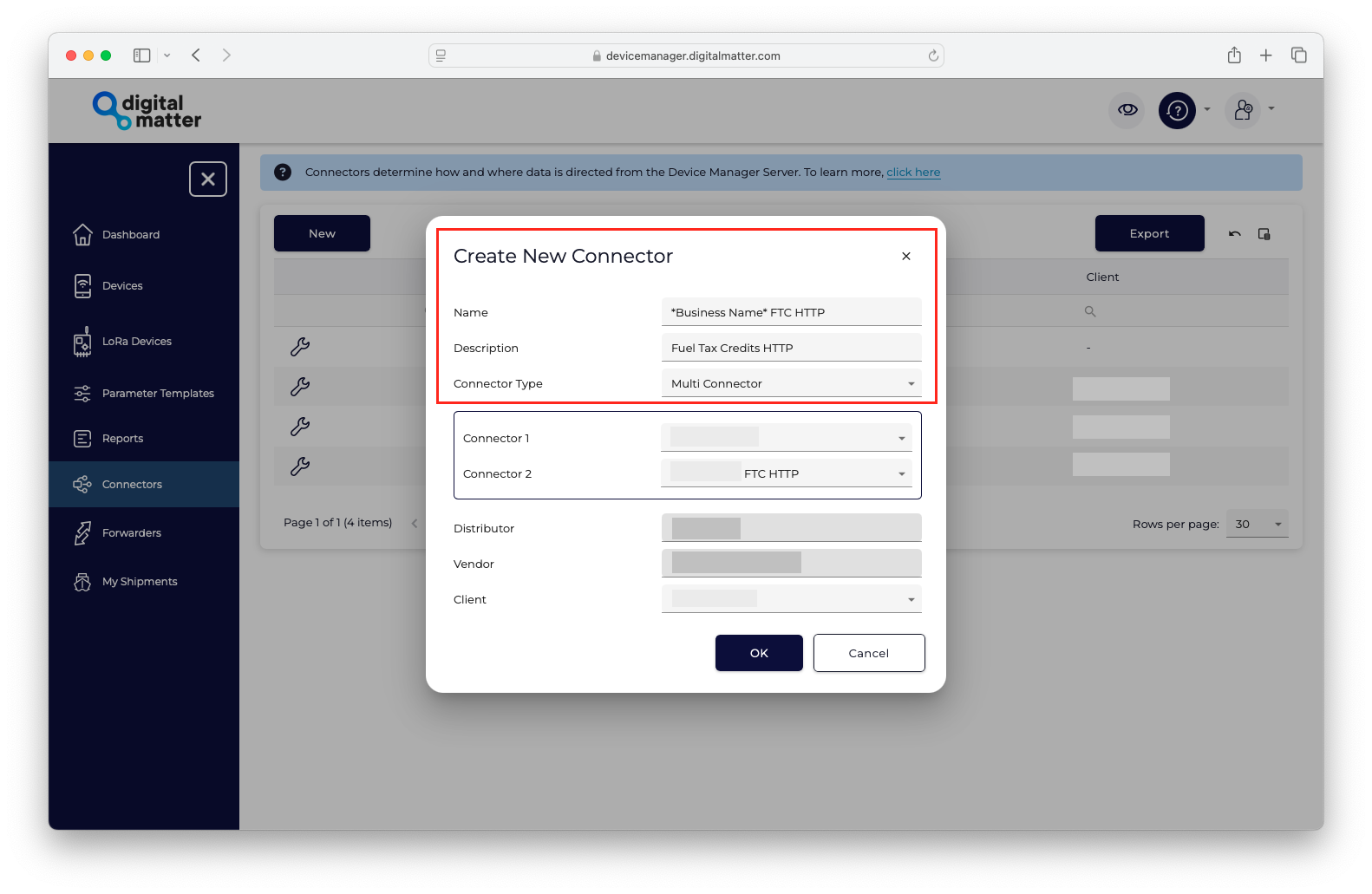 To set up your multi-connection, select the HTTP connection you previously created for one of the connection types. For the other connection, select the type of your choice based on your requirements.
If you haven’t created an HTTP connection or need instructions, please refer to the HTTP guide above.
Enter your client name in the field below Vendor.
Leave all other settings as default and click OK to save.
Select devices and configure your device with the HTTP connection (See screenshot below for reference).
For TCP, the connector must be configured to send binary-encoded data to our server using the Telematics Guru platform. You must also provide us with the serial number of each device. Please contact us on 1300 822 370 or at [support@nuonic.com.au](mailto:support@nuonic.com.au) to obtain the server address and initiate a Digital Matter integration.
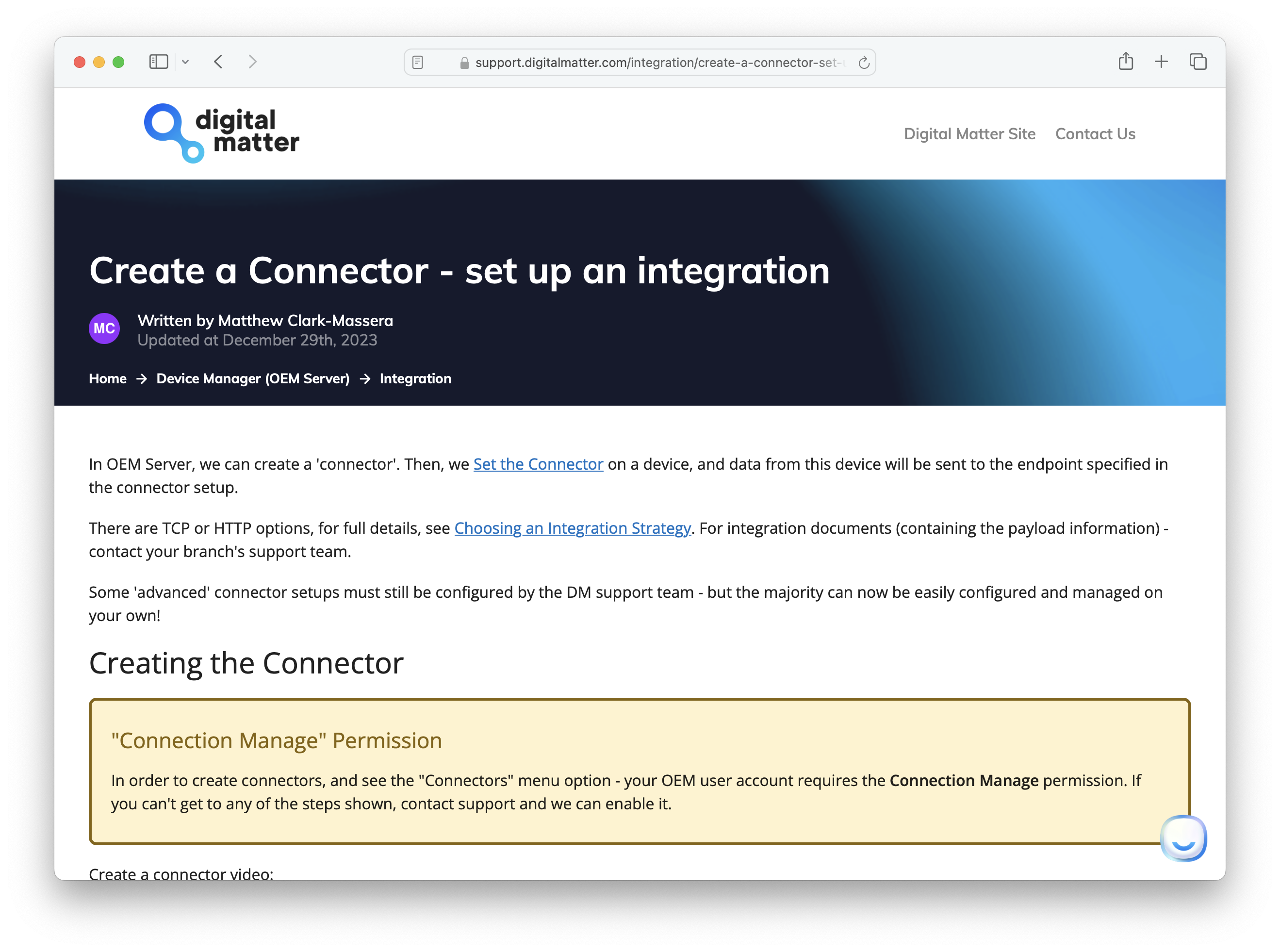
For technical details in relation to the Telematics Guru configuration, please read Digital Matter's [connector guide](https://support.digitalmatter.com/integration/create-a-connector-set-up-an-integration).
PathStack uses trips that are created by digital matter devices. See
[here](https://support.digitalmatter.com/tracking-gps-parameters/movement-trips-assumed-start-point-range) for details.
To set up your multi-connection, select the HTTP connection you previously created for one of the connection types. For the other connection, select the type of your choice based on your requirements.
If you haven’t created an HTTP connection or need instructions, please refer to the HTTP guide above.
Enter your client name in the field below Vendor.
Leave all other settings as default and click OK to save.
Select devices and configure your device with the HTTP connection (See screenshot below for reference).
For TCP, the connector must be configured to send binary-encoded data to our server using the Telematics Guru platform. You must also provide us with the serial number of each device. Please contact us on 1300 822 370 or at [support@nuonic.com.au](mailto:support@nuonic.com.au) to obtain the server address and initiate a Digital Matter integration.
For technical details in relation to the Telematics Guru configuration, please read Digital Matter's [connector guide](https://support.digitalmatter.com/integration/create-a-connector-set-up-an-integration).
PathStack uses trips that are created by digital matter devices. See
[here](https://support.digitalmatter.com/tracking-gps-parameters/movement-trips-assumed-start-point-range) for details.