> ## Documentation Index
> Fetch the complete documentation index at: https://docs.pathstack.io/llms.txt
> Use this file to discover all available pages before exploring further.
# Bestrane
Bestrane offers Geotab devices for telematics as well as other hardware and software solutions. PathStack currently offers integration with Geotab, which can be connected by the following this guide. For other devices, please [contact us](/legal/contact-information) to discuss options.
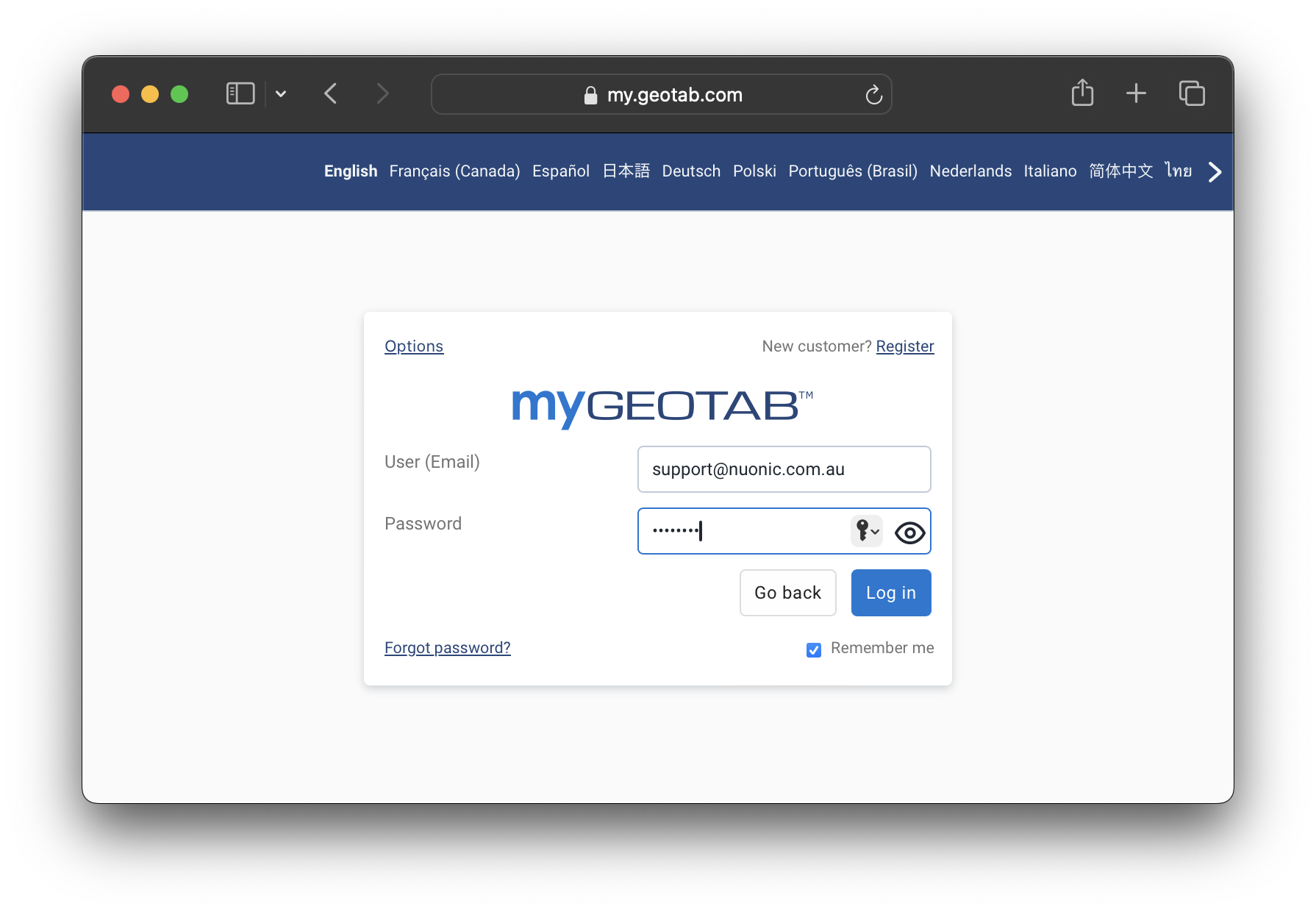
To connect your Geotab telematics data with PathStack, you will need the following access credentials:
* Username
* Password
These credentials are the same ones used to log in to the MyGeotab web portal. We recommend creating a new user with read-only access for the PathStack connection. To do this, follow these step:
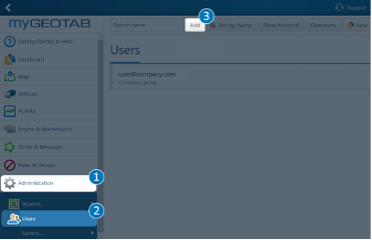
Log in to MyGeotab account and navigate to (1) Administration > (2) Users, and click the (3) Add button.
 Geotab have an online guide for creating new users [here](https://knowledge.geotab.com/portal/app/portlets/results/viewsolution.jsp?solutionid=221222143538200)
On the new user page, complete the following:
Geotab have an online guide for creating new users [here](https://knowledge.geotab.com/portal/app/portlets/results/viewsolution.jsp?solutionid=221222143538200)
On the new user page, complete the following:
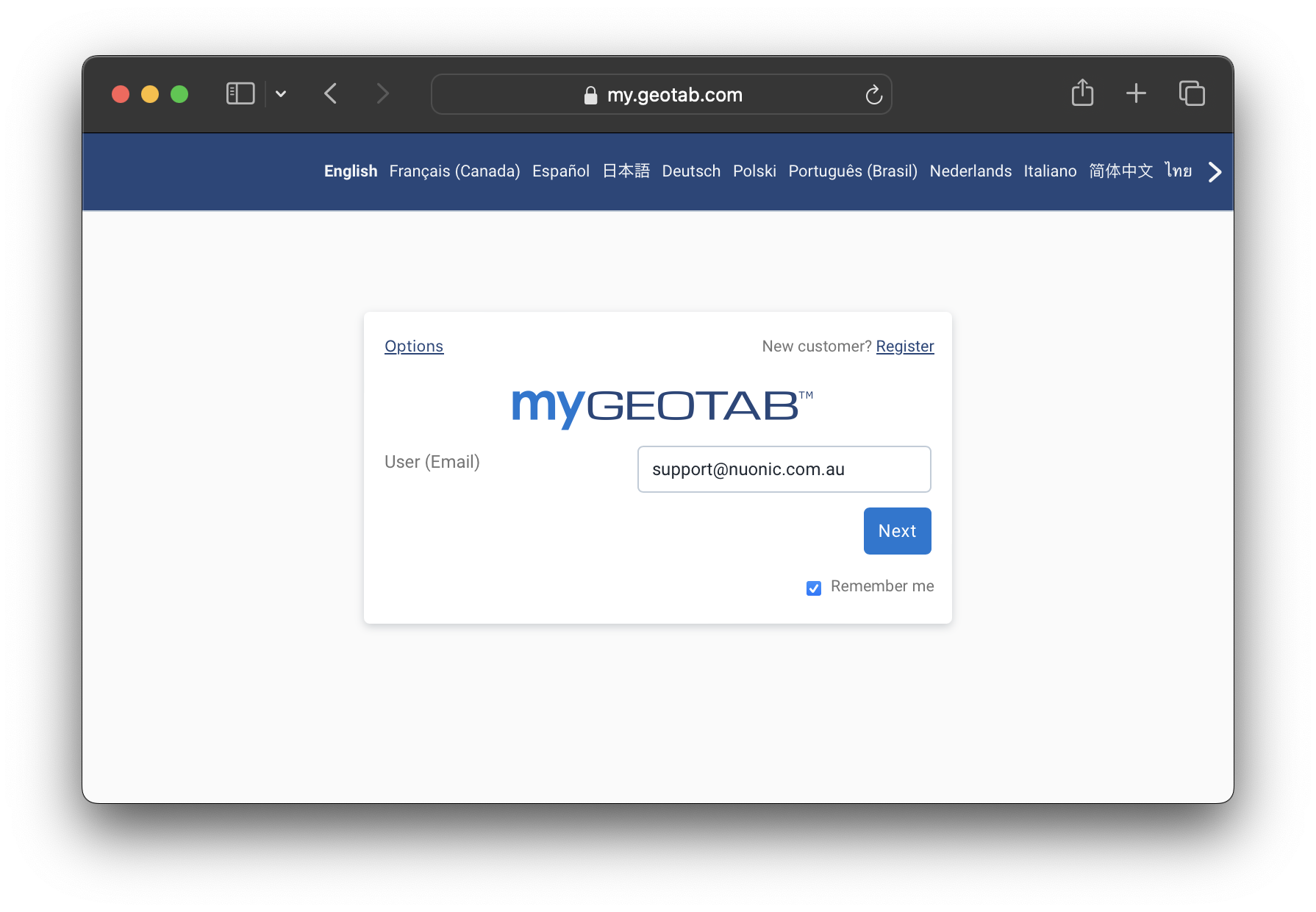 User (Email) is the username that will be used in PathStack as the credentials Username.
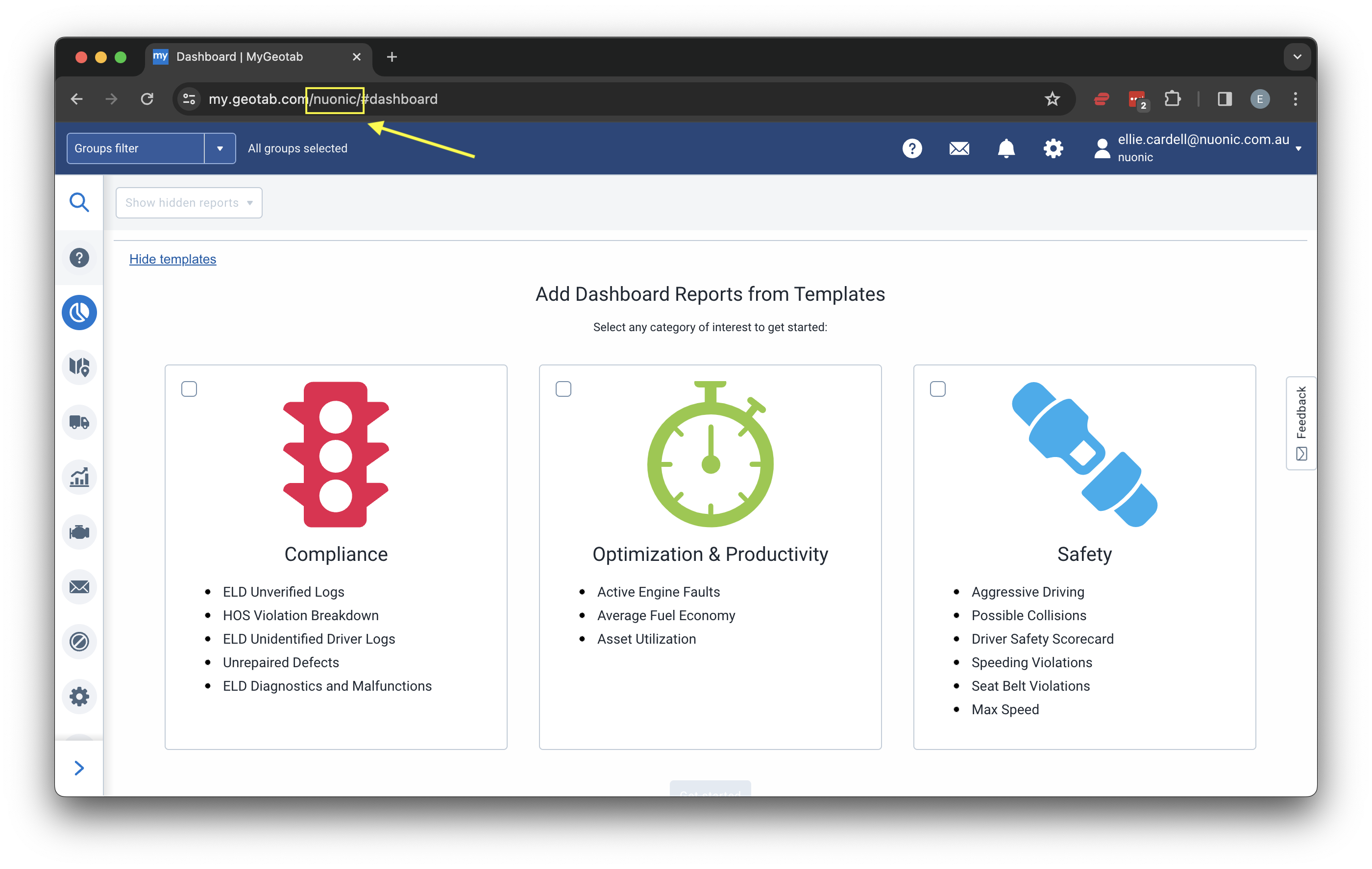
 Once logged into your MyGeotab account, you will be able to retrieve your database name from the search bar at the
top of your page. The database name sits in the search bar as `my.geotab.com/DatabaseName/#dashboard`. For example,
in the image below the database name would be Nuonic.
Once logged into your MyGeotab account, you will be able to retrieve your database name from the search bar at the
top of your page. The database name sits in the search bar as `my.geotab.com/DatabaseName/#dashboard`. For example,
in the image below the database name would be Nuonic.
 For further assistance configuring your Geotab account, please visit the [Geotab support centre](https://support.geotab.com/)